
Appearance
Automations
Automations run a repository's configuration scan on a daily or weekly schedule. Each automation belongs to one repository and always scans its GitHub default branch.
Available on Pro
Automations do not schedule Dependabot, run CI or create a pull request. Dependency alerts in Security Center are kept up to date separately.
Automation scope
A successful automation means the configuration scan completed. It does not mean CI passed or the repository has no dependency risks.
Who can manage an automation
You must be an EasyMerge organization admin and have access to the repository to create, edit, pause, resume or run an automation. Members with repository access can view its schedule and run history but cannot change it.
A schedule and its runs are hidden from anyone who no longer has access to that repository on GitHub.
If your organization's plan does not include Automations, Automations is hidden from the sidebar. Opening its page directly explains the upgrade, and any existing schedules stay readable.
Create a schedule
Open Automations → New automation, then:
- Choose one repository. The automation is created in the organization selected in the header; switch organizations there to schedule a repository in another one. If no organization is selected, choose one first — only organizations with Automations on their plan are listed.
- Choose Daily or Weekly. For a weekly schedule, choose the day.
- Choose a one-hour Run window in UTC.
- Optionally enable Notify me when a run fails. You, as the admin who created the automation, then get an in-app notification once for each run that ends Failed or Timed out. Retries within a run do not notify.
- Save the automation.
The run can start at any point inside the selected hour and may finish after the window closes. Schedules use UTC only and do not offer minute-level start times.
Saving does not scan
Saving a schedule does not start a scan immediately. Use Run now when you need a new scan without waiting for the next window. Running now does not enable a paused schedule.
The organization and repository cannot be changed after the automation is created. Create another automation to schedule a different repository.
Manage schedules
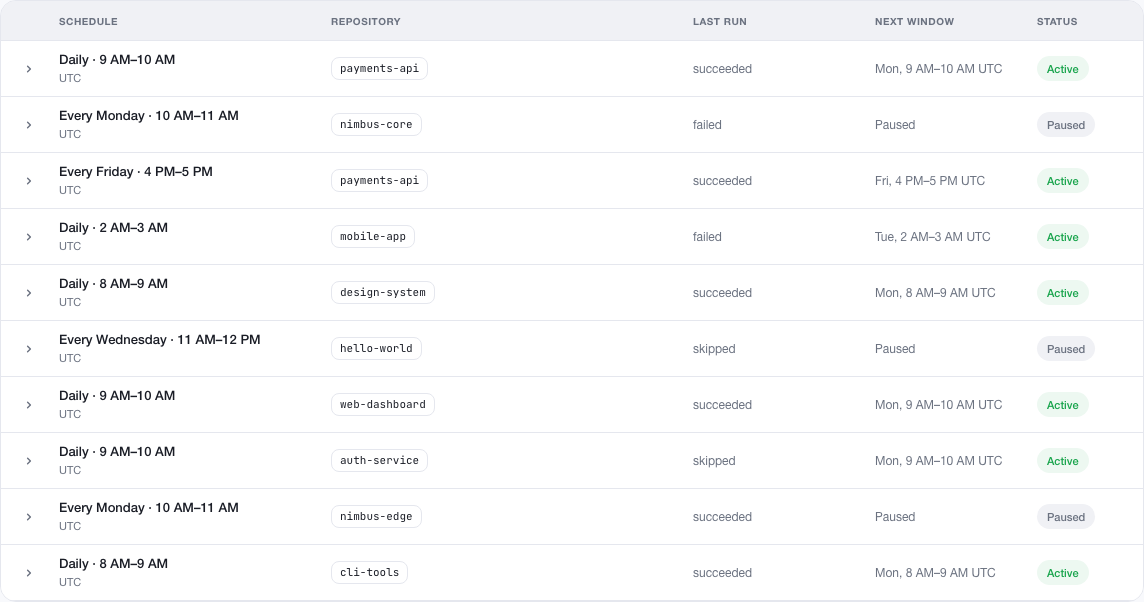
The Automations page shows the repository, daily or weekly window, latest run, next window and whether each schedule is Active, Paused or Paused — plan changed. Filter the list by repository or status.
Select Pause to stop future scheduled runs without deleting the configuration or history. Select Enable to turn the schedule back on; the next window is calculated from that point.
Missed windows
A missed window is not run later outside its scheduled time.
Read run history
Select View runs for an automation. Each row is one configuration-scan attempt and may be:
| Status | Meaning |
|---|---|
| Queued Running | Work is in progress |
| Succeeded | The configuration scan completed |
| Failed | It could not complete |
| Timed out | The run did not finish within 24 hours |
| Skipped | Setup or access prevented the scan |
| Window missed | The run could not start inside its scheduled hour |
| Cancelled | The run was stopped before it finished, for example because the schedule was edited or paused first |
Each row says whether it was Scheduled, started with Run now or with Run again, shows when it was requested and, once finished, how long it took, and gives the reason when a run did not succeed.
Use Run again on any finished run. The new attempt is added to the history and the original result remains available.
If your plan changes
Downgrading from Pro
Moving off Pro pauses active automations, shown as Paused — plan changed, and cancels scheduled runs that have not started. Schedules and run history are kept: you can still read them and pause a schedule, but editing, enabling, Run now and Run again need Pro. Returning to Pro does not resume them automatically; an organization admin must enable each schedule again.
If the organization is suspended
While an organization's EasyMerge installation is suspended, its schedules do not run and the Automations page shows Automations are paused with the reason:
- if the app was suspended on GitHub, an owner of the GitHub account can re-enable it in GitHub's settings for installed apps;
- if EasyMerge suspended the installation, contact support to have it reactivated.
You can still view schedules and their run history, and pause a schedule. Creating, editing or enabling a schedule, Run now and Run again are refused until the organization is reactivated.